
- The email address on file with Progressive will be used as your login email.
- The new website requires Multi-Factor Authentication (MFA) when logging in. A verification code will be sent to your login email address.
- Once logged in, you will remain logged in until you manually log out.
- If you log out, MFA will be required again the next time you log in.
Multiple Accounts with the Same email Address
If you place orders for multiple accounts using the same email address, Progressive will need to update your email addresses in our system to include the account number.
This allows each account to have a unique login while still delivering emails to your primary inbox.
Example:
Chrissi Calarco places orders for two separate companies using the email chrissi.calarco@procomps.com.
- Account 9018949: chrissi.calarco +9018949@procomps.com
- Account 9019796: chrissi.calarco +9019796@procomps.com
Both email addresses will deliver to chrissi.calarco@procomps.com but will allow unique logins for each account.
- Filters are available within each product category to help you narrow results and find items more quickly.
- The search bar searches all items available in the webstore.
- Catalog pages and CAD files are associated directly with each product.
- Use the search bar or category filters to locate the desired item.
- Catalog page and CAD file download links are displayed prominently in the middle of the product page for easy access.
Quick Order

Selecting Quick Order from the top menu allows you to:
- Import an order file, or
- Manually enter items using the Quick Order form.
Import your order
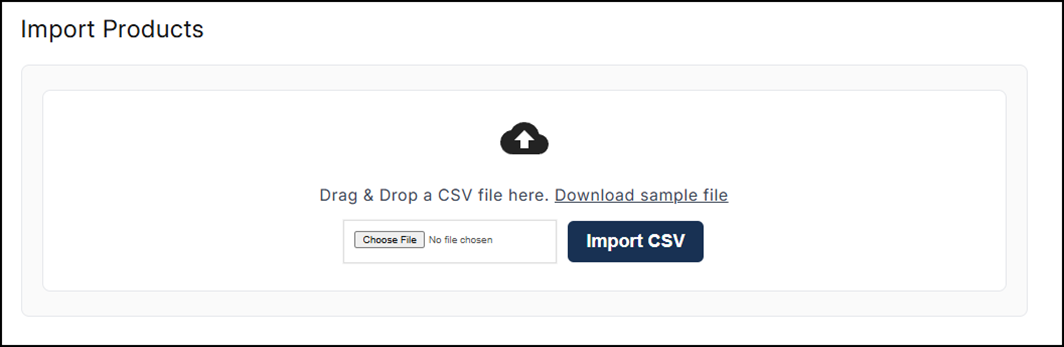
- Currently, only CSV files can be imported.
- A sample CSV file is available for download and can be used as a template.
- Once uploaded, imported items will appear in the Quick Order form, where quantities or details can be edited before adding items to the cart.
Quick Order Form
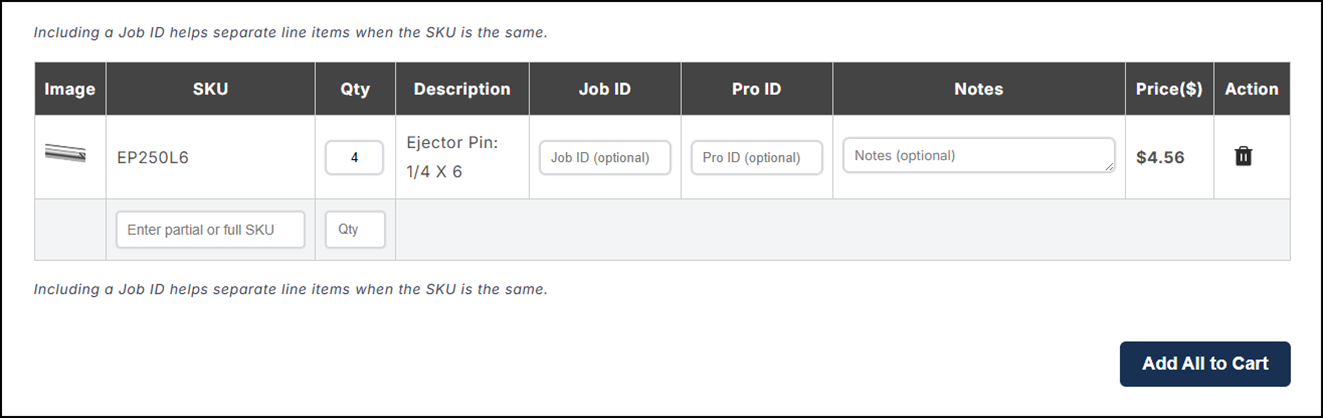
- Items can be entered directly into the Quick Order form and added to the cart in bulk.
- Job numbers, reference numbers, or notes can be added to each line item.
- Important: A Job ID is required when multiple line items use the same SKU and must be kept separate.
Ordering Specials
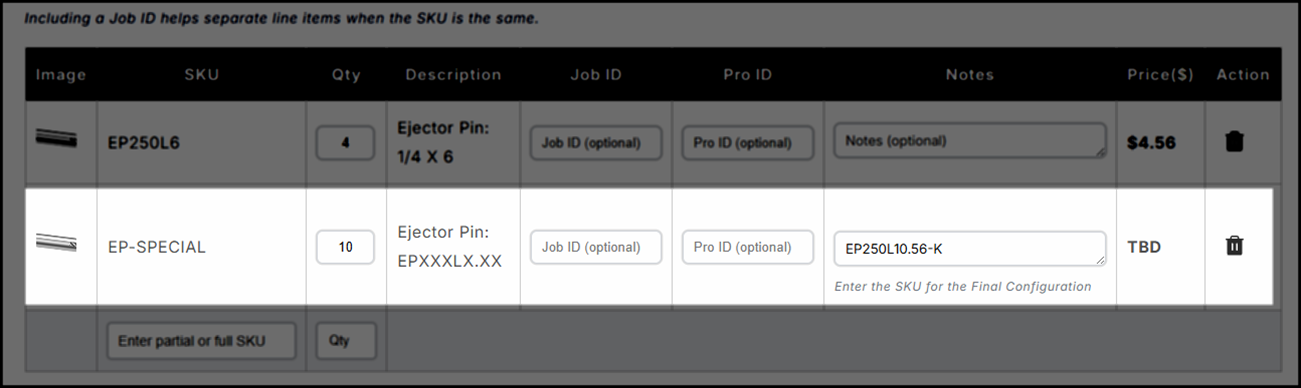
- When ordering special items, enter the product configuration details in the Note field, following the format shown in the product description.
- Any additional notes for special items can be added during the checkout process.
Preview

- Click the cart icon in the top menu to view your order preview.
- From this screen, you can:
- Review items and quantities
- Make changes
- Add or edit notes and job numbers
- When ready, click Checkout to proceed.
Checking Out
Ship To Location
- Select the appropriate shipping location for your order.
- To use a new shipping address, add it in the order notes and indicate whether it is:
- A one-time shipping address, or
- An address you would like added to your account
Ship Method
- Select the appropriate shipping method for your order.
- If choosing Collect, a valid carrier account number is required.
- If applicable, freight charges will be applied and confirmed in your order confirmation from Customer Service.
Payment
- If your company has credit terms, they will appear as a payment option.
- Credit card payment is also available if needed to customers located in North America only.
- Credit card payments will be processed through a secure payment link sent by Customer Service after the order is placed.
Billing Address
- The system defaults the billing address to match the shipping address.
- This can be disregarded, as billing addresses are not updated through the webstore.